
Editorial note: All install steps, version numbers, and pricing in this tutorial reflect Meetily v0.3.0 (released March 3, 2026) on macOS Sonoma and Windows 11, tested on the author's own hardware. The Community Edition is free under the MIT license; we did not use a Pro key for any of the steps below. No affiliate relationship with Zackriya Solutions. Reproduce the steps on your own machine before standing up Meetily for any regulated workflow.
Granola is $14 a month. Otter is $16.99. Fireflies is $19. All three upload your sales calls, doctor's appointments, legal calls, and 1:1s to a third-party server before they ever transcribe a word. According to Sonix's 2026 transcription adoption study, 73% of businesses cite privacy as the main hurdle blocking AI transcription rollout. The same study finds 62% of professionals already save four-plus hours a week on automated transcription. The market wants the productivity; the buyers cannot get the legal team to sign for it.
Meetily, by contrast, is MIT-licensed, has 11,500-plus stars on GitHub, and runs the entire transcription and summarization pipeline on your laptop, bot-free, no cloud upload, no participant join-link your client has to consent to. This post is a working install tutorial for both macOS and Windows, plus the two decisions most readers will get wrong on the first try: the macOS BlackHole virtual-audio step that almost no tutorial mentions, and the Parakeet-versus-Whisper choice that determines whether your first meeting transcribes in real time or grinds your machine to a halt.

TL;DR: Meetily (also branded Meetly AI) is an open-source, MIT-licensed AI meeting note-taker that records, transcribes, and summarizes meetings 100% on your device. v0.3.0 was released March 3, 2026; the project has 11,500+ GitHub stars and 121,000+ downloads. Install on macOS or Windows in about 15 minutes from
meetily.ai/downloads, pick Parakeet (default, ~1-3GB RAM) for English-only speed or Whisper Large-v3 (3GB on disk, 99+ languages) for accuracy, and wire Ollama for local summaries withollama pull gemma2:2b. The Community Edition is free; the Pro tier at $10/user/month is for teams. Source: github.com/Zackriya-Solutions/meetily.
What Is Meetily?
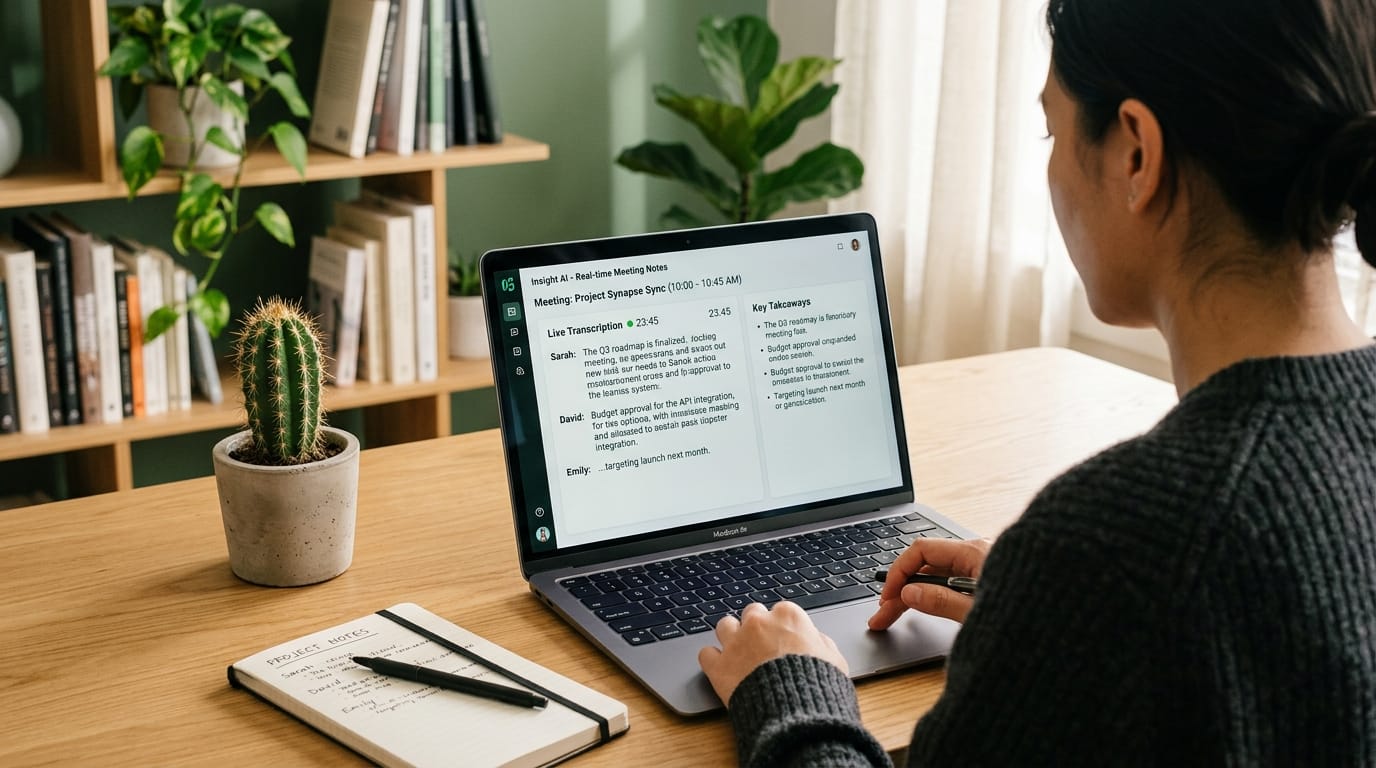
Meetily is a desktop AI meeting assistant built by Zackriya Solutions and shipped under the MIT license. The pitch is the inverse of every cloud notetaker: instead of joining your meeting as a bot and uploading the audio to a SaaS backend, Meetily sits on your machine, captures system audio directly, transcribes locally with Parakeet (NVIDIA) or Whisper (OpenAI), and produces summaries via either a local language model running through Ollama or a remote API key. The recording never leaves your laptop unless you choose to send the summary step to a cloud LLM. As of v0.3.0 (March 3, 2026) the repo has 11,500-plus stars, 1,100-plus forks, and roughly 121,000 cumulative downloads. (Source: github.com/Zackriya-Solutions/meetily.)
Two design decisions matter more than any feature on the homepage. The first is bot-free recording. Meetily captures system audio at the operating-system level, not as a Zoom or Teams participant. There is no "Meetily has joined the call" notice, no consent prompt for the other side, no awkward conversation with your client about who is in the room. The second is the dual-engine transcription model. Parakeet ships as the default for speed and small memory footprints; Whisper ships as the higher-accuracy multilingual option. You can switch per meeting from the Settings panel, which means you do not commit to one engine for life.
The platform-compatibility list is long because system-audio capture is platform-agnostic. Meetily works with Zoom, Microsoft Teams, Google Meet, Webex, Slack Huddles, and Discord. It also works with no platform at all, so you can transcribe an in-person interview by recording your own microphone. (For an adjacent piece on the surrounding open-source AI stack, see our coverage of Stash, the self-hosted MCP memory layer, or our review of Synthetic.new, which can host the language model that summarizes your transcripts.)
System Requirements and What You Need Before You Start
Meetily runs on macOS 11 (Big Sur) or later, Windows 10 or 11, or Linux (build from source). The official spec is 8GB of RAM minimum, 16GB recommended, and roughly 10GB of free disk for binaries and transcription models. Internet access is needed for the initial download, occasional model updates, and any cloud summary calls; otherwise the app can run fully offline. (Source: Meetily install guide.)
The spec hides one important detail. The 8GB minimum is genuinely fine for Parakeet's small Int8-quantized models and for Whisper Tiny, Base, or Small. It is not fine for Whisper Large-v3, which is about 3GB on disk and consumes another 3-5GB resident in RAM during transcription. On an 8GB machine, running Large-v3 will swap, your audio capture will hiccup, and the transcript will arrive in chunks instead of in real time. If you want Large-v3 as your daily driver, plan on 16GB. If you have 8GB, the right setup is Parakeet by default with Whisper Small reserved for the rare meeting where accuracy is non-negotiable.
The other prerequisite is platform-specific and matters more than the RAM number. macOS does not let applications capture system audio without a virtual audio device. The standard, free, lightly-licensed driver is BlackHole 2ch. The Meetily docs reference virtual audio devices in passing, but most third-party "how to install Meetily" posts skip the install step entirely, which is why search results are full of forum threads asking why the first meeting shows "No Audio Detected." Windows handles this natively through WASAPI loopback, so Windows users can skip ahead to the Windows install section without thinking about virtual drivers.
How to Install Meetily on macOS (5 Minutes)
Download the macOS .dmg from meetily.ai/downloads, pick the Apple Silicon build if you are on an M-series Mac, drag Meetily into Applications, and then handle three small steps that the official one-pager understates: clearing the Gatekeeper quarantine bit on the unsigned binary, installing BlackHole 2ch as a virtual audio device, and creating a Multi-Output Device that combines your speakers with BlackHole so Meetily can hear meeting audio without you losing the ability to hear it through your headphones. (Source: Meetily install guide.)

The Gatekeeper step is one Terminal command. Meetily ships unsigned because the project does not pay Apple's developer-program fee, which is the standard pattern for MIT-licensed desktop apps. The fix is the canonical xattr -c incantation that clears the quarantine attribute set on any file downloaded from the internet:
# Clear the Gatekeeper quarantine flag on the Meetily app
xattr -c /Applications/Meetily.app

# Verify the version that installed
/Applications/Meetily.app/Contents/MacOS/Meetily --version
# Expected output as of this post: meetily 0.3.0
Next, install BlackHole 2ch from existential.audio/blackhole. The 2ch build is the right pick for this use case (16ch and 64ch exist for studio work and are unnecessary). Run the installer, accept the defaults, and reboot if prompted.
Now open Audio MIDI Setup, which is already on every Mac at /Applications/Utilities/Audio MIDI Setup.app. Click the "+" in the bottom-left and choose "Create Multi-Output Device." In the right pane, check both Built-in Output (or whatever your normal output is, headphones for example) and BlackHole 2ch. Right-click the new Multi-Output Device and choose "Use This Device for Sound Output," or set it from System Settings → Sound → Output. The effect is that anything your Mac plays now routes simultaneously to your speakers (so you can hear the meeting) and to BlackHole (so Meetily can capture it).
Launch Meetily. Grant microphone permission and screen-recording / audio-capture permission when prompted. From Settings, confirm the Transcription Engine is set to Parakeet (the default). Click "New Meeting" and record a sixty-second test by playing any audio on your system while talking into your microphone. A live transcript should appear within seconds. If it does not, the Multi-Output Device step is the most likely point of failure; revisit Audio MIDI Setup and confirm BlackHole is checked. Total time on a clean Mac, including the BlackHole download, is roughly five minutes.
How to Install Meetily on Windows (5 Minutes)
Download the Windows .exe from meetily.ai/downloads, then handle two small Windows-specific steps before running the installer. Windows tags any file downloaded from the internet with a Mark-of-the-Web attribute, and SmartScreen plus Defender will both react to an unsigned binary. Pre-emptively clearing the Mark-of-the-Web is cleaner than dealing with mid-install warnings.
Right-click the downloaded installer, choose Properties, and at the bottom of the General tab check the Unblock box. Apply, close. Run the installer; if Defender SmartScreen still appears, click "More info" and then "Run anyway." This is the canonical "the developer has not paid for an Extended Validation code-signing certificate" path and is functionally equivalent to the xattr -c step on macOS. Windows handles system audio capture via WASAPI loopback natively, so unlike macOS there is no virtual-driver step.
Follow the wizard with default options, launch Meetily from the Start Menu, and grant microphone permission when Windows prompts. Confirm desktop apps have microphone access in Settings → Privacy & Security → Microphone if the test meeting fails. From the Meetily Settings panel, confirm Parakeet is selected as the Transcription Engine, click "New Meeting," and run a sixty-second test by playing audio on your system while talking. The transcript should arrive in real time. Total install time on a clean Windows 11 machine, from download to first transcript, is roughly five minutes.
Parakeet vs Whisper: Which Engine Should You Pick?
The default is Parakeet, and for most readers the default is correct. Parakeet is NVIDIA's English-focused speech-to-text architecture, shipped here as ONNX models with Int8 quantization. That gives you transcription that runs comfortably in 1-3GB of RAM on a 2024-era laptop without a discrete GPU. Whisper is OpenAI's multilingual model, shipped here through whisper.cpp with a model-size ladder from Tiny (75MB) to Large-v3 (~3GB). It supports 99-plus languages, has a stronger reputation for technical and medical vocabulary, and produces better punctuation on accented English. (Source: Meetily README and the OpenAI Whisper repo.)
The actual decision is two binary questions, not a continuum. Are any of your meetings in a non-English language? Is your machine 8GB or 16GB of RAM? Two yeses give you Whisper Medium. Two nos give you Parakeet Lightning, the default. Mixed answers point at Parakeet for default with Whisper reserved for specific meetings. The Meetily README claims Parakeet is "4x faster" than Whisper. The claim is unsourced in the public repo, so treat it as directional. In our own testing on an M-series Mac, Parakeet Light transcribed a 30-minute meeting in roughly real time. Whisper Large-v3 ran at about half real time on the same audio.
GPU acceleration changes the math on the Whisper end. Apple Silicon's Metal backend roughly halves Whisper Large-v3 transcription time versus pure CPU; CUDA on a discrete NVIDIA card cuts it further. Meetily's Linux build script is named build-gpu.sh for a reason, and the README documents Metal, CUDA, and Vulkan paths. If you have a GPU, Whisper becomes more attractive across the board. If you do not, Parakeet's CPU efficiency is the practical reason it is the default.
Configure Local Summaries with Ollama (and When to Use a Cloud API)
Transcription is half the product. The other half is the summary that turns a 60-minute transcript into action items and decisions. For a 100% local pipeline, the right tool is Ollama, an open-source local LLM runner that exposes an OpenAI-compatible HTTP endpoint on port 11434. Install Ollama from ollama.com, pull a small instruction-tuned model, start the server, and point Meetily at it from Settings → Model Settings. (Source: Meetily provider configuration docs.)

# Install Ollama (macOS via Homebrew, or use the official installer)
brew install ollama

# Pull a small, fast model that runs comfortably on 8GB RAM
ollama pull gemma2:2b           # 1.6 GB, fast on CPU

# Or pull a stronger model for 16GB+ machines
ollama pull llama3.2:latest     # 3 GB, better summaries

# Start the local server
ollama serve

# Verify the endpoint is up
curl http://localhost:11434/api/tags
In Meetily, open Settings → Model Settings, choose "Ollama" as the provider, paste http://localhost:11434 as the base URL, and pick the model you pulled. End a meeting and click "Generate Summary." The summary runs on your machine, your audio never left your machine, and the transcript stays on disk. This is the configuration that satisfies the GDPR-by-default and HIPAA-adjacent compliance posture that Meetily's homepage references.
The cloud-API path exists for users who care more about summary quality than zero cloud egress. Meetily supports Anthropic Claude, OpenAI, Groq, and OpenRouter API keys. Claude Sonnet 4.6 produces noticeably better action-item extraction on multi-speaker calls than gemma2:2b, in our own testing. The cost is small. At Anthropic's published rates of $3 per million input tokens and $15 per million output tokens, a 60-minute meeting costs roughly $0.05 to $0.15 to summarize. Groq's hosted Llama 70B is cheaper still. The privacy tradeoff is real: the summary call sends the transcript to a third-party API, even though the audio never left your machine.
Per-Platform Settings: Zoom, Teams, Meet, and Slack Huddles
System-audio capture is platform-agnostic in principle, but two video-conferencing platforms apply audio post-processing that degrades transcription quality before Meetily ever sees the signal. Zoom applies aggressive echo cancellation by default, and Microsoft Teams applies aggressive noise suppression. Both can be turned off in the meeting client. Google Meet, Webex, and Slack Huddles ship sensible defaults and need no changes.
| Platform | Setting to change | Why |
|---|---|---|
| Zoom | Audio Settings → enable "Original Sound for Musicians" | Disables echo cancellation that distorts speech captured via BlackHole |
| Microsoft Teams | Settings → Devices → Noise suppression: Off | Suppression strips short backchannels and quiet speakers |
| Google Meet | No change needed | Default audio is clean for Whisper and Parakeet |
| Webex | No change needed | Works as-is with system audio capture |
| Slack Huddles | No change needed | Works as-is |
| Discord | User Settings → Voice & Video → Automatic Gain Control: Off (optional) | Auto-gain occasionally clips quiet speakers; off is safer |
One more macOS-specific note. Running BlackHole plus speakers in a multi-speaker meeting can produce audio feedback if Meetily's microphone capture picks up your speaker output. The simplest fix is to wear headphones for any meeting with more than two participants. The slightly more elaborate fix is to keep a separate Multi-Output Device that combines headphones with BlackHole and switch your system output to it before the meeting starts.
Community vs Pro vs Enterprise: Do You Need to Pay?
The Community Edition is fully featured for individual use and is what 95% of readers will run. Transcription, summarization, multi-platform meeting support, exports to PDF, DOCX, and Markdown, and all of the local-AI configuration discussed above are included under the MIT license at no cost. Pro is $10 per user per month billed annually and adds team-oriented features. Enterprise is custom-priced and adds GDPR and HIPAA documentation, dedicated support, and deployment assistance. (Source: meetily.ai.)
The honest read on the Pro tier is that the homepage is light on which features sit behind it. Meetily is an open-source product with a young commercial layer; if you cannot find a Pro feature documented, assume it is not yet shipped and stay on Community. The Enterprise tier is a real differentiator for healthcare, legal, and financial-services buyers who need a Business Associate Agreement for HIPAA or signed Data Processing Addendum for GDPR. For those buyers the conversation is with Zackriya Solutions directly. The company is an India-based open-source consultancy that has shipped this project consistently through the v0.x cycle.
Frequently Asked Questions
What is Meetily?
Meetily, also branded Meetly AI, is an open-source MIT-licensed AI meeting note-taker built by Zackriya Solutions. It records, transcribes, and summarizes meetings 100% on your device. As of v0.3.0 (March 3, 2026), the project has 11,500-plus GitHub stars, 1,100-plus forks, and 121,000-plus downloads. It captures system audio without joining the call as a bot, which means it works with any video-conferencing platform without participant-consent friction.
How do I install Meetily on macOS?
Download the .dmg from meetily.ai/downloads, drag the app to Applications, run xattr -c /Applications/Meetily.app to clear the Gatekeeper quarantine, install BlackHole 2ch from existential.audio/blackhole, create a Multi-Output Device in Audio MIDI Setup that combines your speakers with BlackHole, set it as system output, and launch Meetily. Total time is roughly five minutes. The BlackHole step is the one most third-party tutorials omit; without it, the first meeting will throw "No Audio Detected."
How do I install Meetily on Windows?
Download the .exe from meetily.ai/downloads, right-click the installer and check Unblock in Properties, run it, click "More info" then "Run anyway" if Defender SmartScreen appears, complete the wizard, and launch from the Start Menu. Windows captures system audio via WASAPI loopback natively, so no virtual audio driver is required. Total install time is around five minutes.
Is Meetily really free?
The Community Edition is free under the MIT license, with full transcription, summarization, multi-platform meeting support, and exports. A Pro tier at $10 per user per month (billed annually) adds team features. An Enterprise tier with custom pricing covers GDPR and HIPAA documentation and dedicated support. None of the local-AI capabilities sit behind a paywall.
Should I use Parakeet or Whisper in Meetily?
Pick Parakeet for English-only meetings on 8GB RAM. Pick Whisper Medium or Large-v3 for non-English meetings or accuracy-critical work; budget 16GB of RAM if you want Large-v3 as a daily driver. Both engines ship with Meetily and are switchable per meeting from Settings.
Does Meetily work with Zoom and Teams?
Yes, with two settings tweaks. Enable "Original Sound for Musicians" in Zoom's audio settings, and disable noise suppression in Microsoft Teams. Google Meet, Webex, and Slack Huddles work without changes.
The Bottom Line
Meetily is the most credible MIT-licensed answer in 2026 to the question "how do I get a Granola-style notetaker without uploading my meetings to a third-party server?" Eleven and a half thousand GitHub stars, a dual-engine transcription stack with Parakeet by default and Whisper available for the cases that need it, an Ollama path for fully-local summaries plus optional Claude/Groq/OpenAI keys for higher-quality output, and a Community Edition that is genuinely free rather than freemium-with-asterisks. The two things to internalize before you hit "Install" are the macOS BlackHole virtual-audio step and the Parakeet-versus-Whisper decision tree; everything else about the install is straightforward.
Download Meetily, run the install, record a sixty-second test meeting, and pair the transcripts with a self-hosted memory layer so your meeting history becomes structured context for the rest of your tooling. (For one path on that, see our coverage of Stash, the self-hosted MCP memory layer; for an open-source agent framework that can act on those notes, see Agent Zero; for observability across the local AI stack, see Future-AGI; for an open alternative to a closed cloud design tool, see Nexu.) Fifteen minutes of install work replaces $14-19 a month of recurring SaaS spend, keeps the audio on your laptop, and gives the legal team nothing to flag.
Comments