
I once spent an entire afternoon trying to figure out why my MCP server, which ran perfectly in the terminal, would fail silently when launched from Claude Desktop. No errors, no logs. Just an unresponsive spinner and a blank tool list. It turned out the root cause was embarrassingly simple: the GUI client was not inheriting my shell's environment variables. If you have ever stared at a "401 Unauthorized" error or wondered why your PATH is not behaving as expected, you have probably hit the same wall.
This post dives into the specific quirks of environment variable inheritance in MCP servers. We look at why your GUI-based tools like Cursor or VS Code do not just "know" about your .zshrc or .bashrc setup, and what you can do about it. I'll share practical fixes, configuration examples for popular clients, and debugging tips to make sure your servers work reliably across all environments. Whether you are dealing with missing API keys, broken paths, or inexplicable startup failures, this guide has you covered. All examples target the MCP 2025-11-25 specification (current stable as of mid-2026), with the 2026-07-28 release candidate adding a stateless protocol core.
MCP Servers for VS Code (Crash Course)
Identify the Problem: Missing Environment Variables in MCP Servers
When starting up MCP servers, missing environment variables can lead to a range of issues. These problems often show up through specific errors or behavior changes that are easy to spot, if you know what to look for.
Common Symptoms of Missing Environment Variables
One of the most obvious signs is an empty tool list in your MCP client. Whether you are using Claude Desktop, Cursor, or VS Code, the server might appear connected but show no tools available. This typically happens because the server fails to initialize properly, though the GUI often hides the underlying error. You might also notice a loading spinner that appears briefly and then vanishes without any explanation.
Authentication errors are another common symptom. Tool calls might return isError: true or result in "401 Unauthorized" errors when the server tries to access an external API. These issues usually stem from missing credentials, such as OPENAI_API_KEY or DATABASE_URL. On Windows, you might encounter errors like "system error 232" or "package not found" if the client overwrites instead of merging environment variables. This can lead to the loss of critical paths like R_LIBS_USER.
Path-related errors are also frequent. For example, a ModuleNotFoundError in Python or an Error: Cannot find module in Node.js often points to missing dependencies caused by an incomplete or incorrect PATH. Similarly, if your configuration relies on tildes (~/) or relative paths, you might see ENOENT: no such file or directory errors. This happens because GUI clients do not perform shell expansions like a terminal does.
Recognizing these symptoms is the first step toward diagnosing why environment variables are missing.
Why These Issues Occur
At the heart of the problem is a simple fact: GUI applications do not inherit environment variables from your shell profile. MCP clients start servers as subprocesses, and unless you explicitly configure them to pass environment variables, the subprocess will run with a stripped-down system environment. This means it lacks custom paths, API keys, and other necessary runtime details.
A server that works perfectly when executed directly in a terminal using node index.js might fail silently in a GUI client like Claude Desktop. The environments are fundamentally different. For context, Error -32000 (Connection Closed) accounts for 97% of all MCP connection failures, while roughly 28% of startup failures are linked to incorrect Node.js or Python paths. Understanding this difference is crucial to resolving these issues effectively.
Common Causes of Missing Environment Variables
Shell Environment Variable Configuration Guide for MCP Servers
Once you have spotted the symptoms, the next step is figuring out why these variables vanish in the first place. The culprits generally fall into two groups: how specific clients handle environment inheritance and how shell configuration conflicts interfere with variable loading.
Client-Specific Limitations
Different MCP clients approach environment variables in their own ways. For instance, Claude Desktop relies on a central configuration file (usually named mcp_settings.json), while the Claude Code CLI prefers local configuration files like .mcp.json located in your project directory. On the other hand, VS Code extensions may only look at workspace settings, which means an API key defined in a global configuration file might work for one client but remain invisible to another.
On macOS, processes launched via the GUI ignore interactive shell files like .zshrc or .bashrc, causing a mismatch between terminal environments and GUI-launched applications. As Claude Lab documentation explains:
"GUI-launched processes on macOS don't read .zshrc or .bashrc. Those files are for interactive shells. A process started by launchd or the Dock isn't an interactive shell, so it never evaluates them".
Another issue is timing. Some MCP clients attempt to start servers before local files like settings.local.json are fully loaded. This timing mismatch can result in the server initializing with an incomplete environment, leading to problems like failed authentication.
But these client-specific quirks are not the only source of trouble. Shell configuration conflicts can also disrupt how environment variables are passed along.
Configuration and Shell Session Conflicts
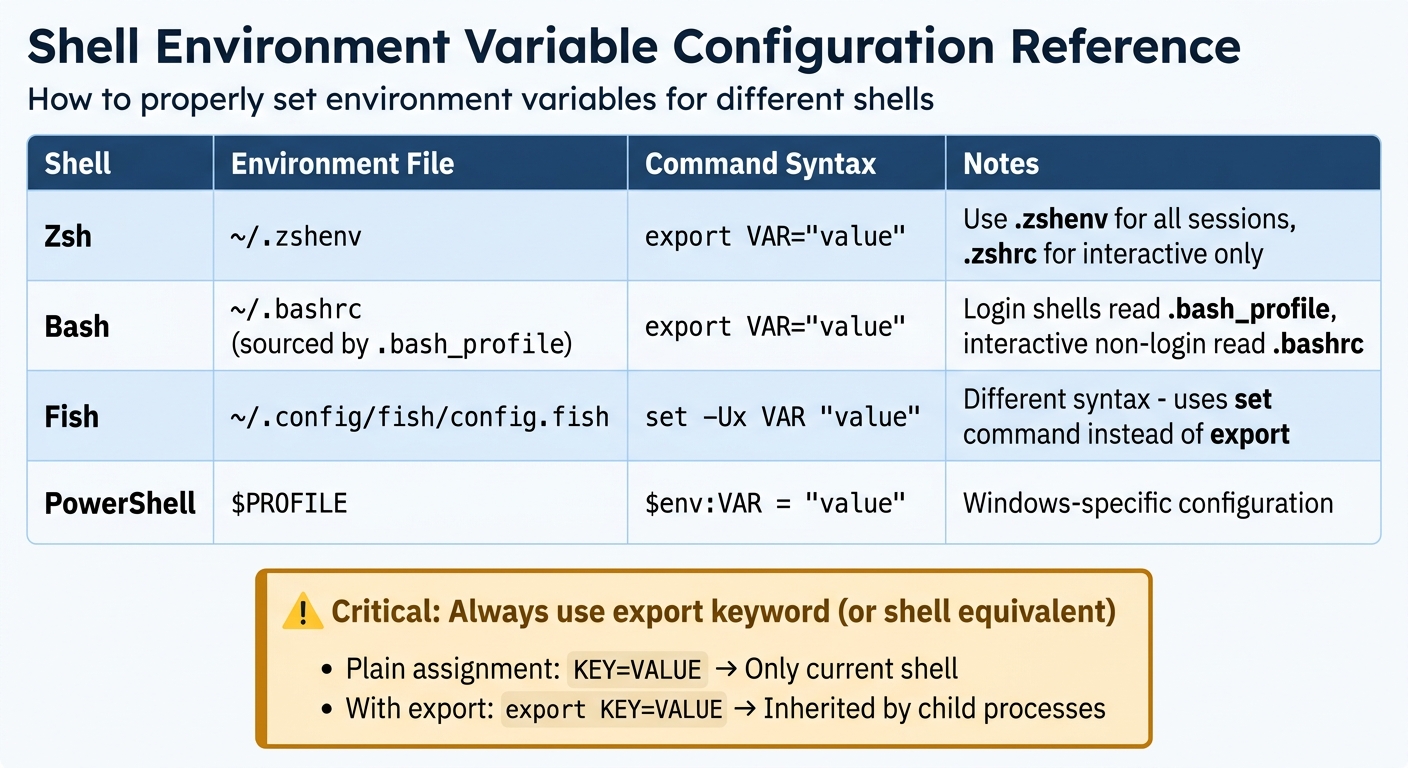
Even when you define environment variables in the correct shell configuration file, errors in setup can block their inheritance. A common mistake is skipping the export keyword. For example, a simple KEY=VALUE assignment only sets the variable in the current shell session. As Claude Lab documentation notes:
"Plain assignment sets the variable only in the current shell. Child processes like Claude Code don't inherit it".
Without export, any subprocesses, like MCP servers, will not recognize the variable, which can lead to issues during initialization or authentication.
Shell precedence rules add another layer of complexity. For example, Bash distinguishes between login shells (which read ~/.bash_profile) and interactive non-login shells (which read ~/.bashrc). If your variables are only in .bashrc but your terminal starts a login shell, those variables will not load. Similarly, Zsh uses ~/.zshenv for all sessions but reserves ~/.zshrc for interactive ones. Variables needed by background processes or scripts should therefore go in ~/.zshenv. Fish shell, meanwhile, uses a completely different syntax with set -Ux VARIABLE_NAME "value" instead of export.
| Shell | Env Var File | Command Syntax |
|---|---|---|
| Zsh | ~/.zshenv |
export VAR="value" |
| Bash | ~/.bashrc (sourced by .bash_profile) |
export VAR="value" |
| Fish | ~/.config/fish/config.fish |
set -Ux VAR "value" |
| PowerShell | $PROFILE |
$env:VAR = "value" |
Docker containers and CI runners complicate things further. These environments do not automatically inherit host machine variables. You have to explicitly pass them using -e flags or workflow env definitions.
To ensure environment variables are consistently available across MCP server setups, it is crucial to address both client-specific behaviors and shell configuration issues.
Fix 1: Merge Environment Variables in Client Configurations
To tackle environment inheritance issues, embed environment variables directly into the client configuration. This approach bypasses the clean environment setup of MCP clients, which omit shell profiles when running servers as subprocesses. Shekhar, Founder of AgenticMarket, clarifies:
"Your IDE launches MCP servers as subprocesses using its own shell environment, which is not the same as your terminal. It doesn't load .bashrc, .zshrc, or your version manager's shell hooks".
The solution involves defining variables within an env block in your server's configuration object. While each client has specific requirements, the general principle of merging environment variables applies universally. Note that some clients, such as Cursor, enforce strict formatting rules.
Example: Fixing Claude Desktop Configurations
For Claude Desktop, include environment variables in the env block under the mcpServers entry in claude_desktop_config.json. Here's an example for configuring a GitHub MCP server with a personal access token:
{
  "mcpServers": {
    "github": {
      "command": "/usr/local/bin/npx",
      "args": ["-y", "@modelcontextprotocol/server-github"],
      "env": {
        "GITHUB_PERSONAL_ACCESS_TOKEN": "ghp_abc123xyz789"
      }
    }
  }
}
Key Tips:
- Use absolute paths for commands (e.g.,
/usr/local/bin/npxinstead ofnpx) since the IDE's PATH may differ from your terminal's PATH. - Add the
-yflag withnpxto avoid interactive prompts that could stall the process. - After saving changes, restart the client completely (e.g., Cmd+Q on macOS or right-click and Exit on Windows).
These adjustments form a baseline for making similar changes in other clients.
Configuration Changes for Other Clients
For Cursor and VS Code, follow similar steps. Cursor, however, may reject a standard env block. In such cases, prepend variables to the command using the env utility:
{
  "mcpServers": {
    "github": {
      "command": "env",
      "args": [
        "GITHUB_PERSONAL_ACCESS_TOKEN=ghp_abc123xyz789",
        "/usr/local/bin/npx",
        "-y",
        "@modelcontextprotocol/server-github"
      ]
    }
  }
}
After updating ~/.cursor/mcp.json, reload configurations by pressing Ctrl+Shift+P and selecting "Reload Configurations".
For Claude Code CLI users, you can add variables directly with the -e flag, which automatically updates ~/.claude/config.json and eliminates manual JSON edits:
claude mcp add <name> -e KEY=VALUE -- <command>
Configuration File References
The table below summarizes configuration file locations and root key names for different clients on macOS:
| Client | Config File Location (macOS) | Root Key Name |
|---|---|---|
| Claude Desktop | ~/Library/Application Support/Claude/claude_desktop_config.json |
mcpServers |
| Cursor | ~/.cursor/mcp.json |
mcpServers |
| VS Code | ~/Library/Application Support/Code/User/mcp.json |
servers |
Fix 2: Use Full Paths and Wrapper Scripts for Reliable Execution
After adjusting client configurations, it's crucial to ensure your executables run without issues by relying on full paths and wrapper scripts. MCP clients operate servers in isolated environments that disregard your shell's PATH variable. This isolation can lead to connection errors if runtime paths are incorrect. Using absolute paths ensures commands execute as expected.
Setting Absolute Paths for Commands
Relative paths like npx or ~/script.sh often fail because the working directory might not align with your home directory. On Windows, adding an env block can cause the process to overwrite the entire environment instead of merging it, disrupting access to essential system executables and libraries.
To determine the absolute path for your runtime, run which npx or which node on macOS/Linux. Update your configuration with this path. For instance, replace "command": "npx" with "command": "/usr/local/bin/npx". Always specify the full path and avoid shortcuts like ~.
If a server fails on Windows after you have added an env block, you will need to explicitly re-add system paths such as PATH or R_LIBS_USER within the same block. For example, users of the ellmer package should include "R_LIBS_USER": "C:/Users/User/AppData/Local/R/win-library/4.4" in their configuration to avoid "System Error 232".
Creating a Wrapper Script for Environment Variables
If your environment setup is more complex, a wrapper script can simplify things. A bash script can export necessary variables and use exec to launch the server. Dre Dyson provides this example:
#!/bin/bash
export GITHUB_PERSONAL_ACCESS_TOKEN="your_token"
exec /usr/local/bin/npx -y @modelcontextprotocol/server-github "$@"
The use of exec is critical. It replaces the shell process with the specified command, ensuring signals are passed correctly. As Dyson explains:
"One crucial detail I learned: always use exec in your script. This replaces the shell process with npx, avoiding weird signal issues".After creating the script, make it executable with chmod +x mcp-github-start.sh. Then, in your configuration, set the "command" field to the absolute path of your script, such as /Users/username/scripts/mcp-github-start.sh. For Windows users, use forward slashes in JSON paths to sidestep escaping problems, like "C:/Users/username/scripts/start.sh".
Fix 3: Convert Configurations Between Clients
This section focuses on how to handle configuration adjustments when moving them between different MCP clients, which often have varying requirements for JSON structures. These differences are a frequent source of issues, with syntax errors and missed client restarts accounting for most problems.
The Root Key Problem
Each MCP client has its own expectations for the root key in the JSON structure. For instance:
- Claude Desktop and Cursor expect
mcpServers. - Zed requires
context_servers. - Continue uses an array under
mcpServers, but each entry must include a"name"field.
While most clients use an object {} for server definitions, Continue deviates by requiring an array []. These structural differences mean you'll need to tailor the JSON file to fit the specific client.
Adapting JSON Configurations for MCP Clients
If you are transitioning from a CLI command to a JSON configuration, start by removing the env prefix from the command. For example, a terminal command like:
env GITHUB_TOKEN=abc123 npx -y @modelcontextprotocol/server-github
Should be converted into a JSON block like this:
"env": {
    "GITHUB_TOKEN": "abc123"
},
"command": "/usr/local/bin/npx",
"args": ["-y", "@modelcontextprotocol/server-github"]
Make sure to use the full path (e.g., /usr/local/bin/npx) in the "command" field to avoid "spawn ENOENT" errors, especially if the client's PATH environment variable differs from your shell's PATH.
For Windows users, remember to use either double backslashes (\\) or forward slashes (/) in paths to avoid JSON parsing errors caused by escape sequences.
Restart Requirements and Hot-Reloading
Restarting the client is another critical step that varies by platform:
- Claude Desktop and Zed require a full restart to apply changes.
- Cursor and Claude Code CLI support hot-reloading, so changes take effect without restarting.
If you are on Windows and changes to %APPDATA% do not seem to work, check %LOCALAPPDATA%\Packages\AnthropicPBC.Claude_... instead. This is often the active configuration location due to MSIX virtualization.
Final Validation
Before restarting or reloading the client, validate your JSON file to catch syntax issues like trailing commas or single quotes. Tools like jsonlint.com can help. These small errors often lead to silent failures in most MCP clients, so it is worth the extra step to ensure everything is correct.
Fix 4: Debug and Validate Environment Variable Inheritance
After implementing earlier fixes, it's time to ensure that your environment variables are properly passed to the server. Once you have validated your JSON configuration and restarted the client, the next step is confirming that the server is receiving the expected variables.
Enable Debug Logging
To get detailed logging output, add one of the following variables to your env block: MCP_DEBUG: "1", DEBUG: "*", or NODE_DEBUG: "mcp". These are commonly supported by Node.js-based MCP servers and will output detailed startup and connection messages to stderr. It is critical to remember that MCP servers are designed to send only JSON-RPC messages to stdout. As outlined in the Model Context Protocol documentation:
"MCP servers must only write JSON-RPC messages to stdout. All logs, debug statements, and error messages must go to stderr."
If logs are mistakenly written to stdout, the client might attempt to parse them as protocol messages, leading to errors like "Unexpected token."
To monitor logs, use the following commands:
- On macOS:
tail -F ~/Library/Logs/Claude/mcp*.log - On Windows:
Check%APPDATA%\Claude\logs\mcp-server-SERVERNAME.log.
For additional insights, you can enable developer tools in Claude Desktop. Create a file at this location:~/Library/Application Support/Claude/developer_settings.json, and include the following:
{"allowDevTools": true}
Then, press Cmd+Option+I in Claude Desktop to open Chrome DevTools. Navigate to the Network panel to inspect the exact JSON-RPC payloads being exchanged.
Once logging is active, proceed to verify environment variable inheritance using targeted testing tools.
Cross-Client Validation Steps
If debug logs confirm that the variables are being passed, but issues persist, isolate the server for testing. This helps determine whether the problem lies with the client or server. Start by using the official MCP Inspector tool:
npx @modelcontextprotocol/inspector <mcp-server-command>
This will launch a web-based UI at http://localhost:6274. If the server functions correctly in the Inspector but fails in clients like Claude Desktop or Cursor, the issue likely stems from client-specific handling of environment variables.
For a more direct approach, you can manually test the server by sending a raw JSON-RPC initialize request. Here is an example command:
echo '{"jsonrpc":"2.0","id":1,"method":"initialize","params":{"protocolVersion":"2025-11-25","capabilities":{},"clientInfo":{"name":"test","version":"1.0"}}}' | node index.js
Additionally, you can modify the server's startup script to log the environment variables. For Node.js, log process.env to stderr. For Python, use os.environ. This will display the variables the server receives, making it easier to identify any missing ones. If a required variable is absent, log a "FATAL" message to stderr and exit with a non-zero code to prevent silent failures.
| Validation Method | Best For | Command/Path |
|---|---|---|
| MCP Inspector | Testing tool logic & environment isolation | npx @modelcontextprotocol/inspector |
| Manual CLI | Checking path/permission issues | Run <command> <args> in terminal |
| Claude Logs | Debugging connection/startup failures | tail -F ~/Library/Logs/Claude/mcp*.log |
| Chrome DevTools | Inspecting JSON-RPC payloads | Cmd+Option+I (in Claude Desktop) |
Client-Specific Workarounds and Best Practices
Examples for Claude Desktop, Cursor, and VS Code
Addressing environment variable quirks in specific clients can save you hours of debugging. Each MCP client has its own requirements, and knowing these details upfront makes all the difference.
Claude Desktop, for instance, needs a dedicated env block for each server in the claude_desktop_config.json file. Unlike some tools, it does not automatically inherit system variables. After making changes to the config, you will need to quit and restart the app. There is no hot-reload option for MCP settings.
Cursor, on the other hand, enforces strict formatting for commands and environment variables. If the typical env block does not work, prepend variables using the env command. For example, set "command": "env" and include variables as the first arguments: "args": ["GITHUB_TOKEN=xyz", "npx", "-y", "@modelcontextprotocol/server-github"]. Cursor supports both global (~/.cursor/mcp.json) and project-specific (.cursor/mcp.json) configurations. It is also worth noting that MCP tools in Cursor only work in Agent mode (formerly called Composer), not in standard chat or inline editing modes.
For VS Code, the JSON structure for MCP configurations varies depending on the extension. Cline uses the same object-based structure as Claude Desktop, while Continue requires an array format for mcpServers, with each entry including a name field. Nikhil Tiwari highlights this distinction:
"Continue uses an array for mcpServers (not an object like Claude Desktop/Cursor). Each entry needs a name field. Mixing up the format is a common source of silent failures".
As mentioned earlier, using absolute paths is essential across all clients. If you are relying on nvm for Node.js, make sure to specify the full path to npx in your configuration files, as the AI tool's shell environment may not inherit your user shell's PATH. To protect sensitive information, avoid embedding credentials directly in JSON files.
For macOS users, granting "Full Disk Access" or setting specific folder permissions for Claude Desktop or Cursor in System Settings > Privacy & Security is crucial. MCP servers inherit the permissions of the client app, so this step ensures everything functions smoothly. On Windows, adjust the PowerShell execution policy to RemoteSigned and include "windowsHide": true in your config to prevent blank terminal windows from popping up. If you are in a corporate network, Cursor might encounter issues due to firewall rules blocking HTTP/2. Disabling HTTP/2 in Cursor's settings can resolve these connection problems.
These tailored practices, combined with the earlier fixes, provide a reliable framework for managing environment variables across different MCP setups.
Wrapping Up
The troubleshooting steps outlined earlier focus on resolving the most common MCP connection failures, which often stem from missing environment variables, incorrect paths, or misdirected log outputs to stdout. This guide tackles these root issues: GUI applications not inheriting shell environments, MCP's stdio transport requiring clean JSON-RPC streams, and client-specific quirks that need tailored solutions.
To address these problems, key fixes include using absolute paths for commands and wrapper scripts, explicitly defining environment variables in configuration files, and ensuring logs are directed exclusively to stderr. These steps help eliminate ambiguity and promote reliable server startups. Additionally, validating required variables at server startup and flagging missing ones with clear error messages can save significant debugging time.
JP Caparas, Codex Ambassador at OpenAI, emphasizes this point:
"If you remember one thing, remember this: _env_var means 'put the name here, not the value'. Once that clicks, MCP auth config stops being a guessing game".
This advice underscores the importance of precise configuration and rigorous validation. Understanding the distinction between variable names and literal values can mean the difference between a functional server and hours of troubleshooting.
After implementing changes, always restart the client to clear cached settings. Run your server command manually in a terminal to catch potential issues before they surface in the GUI environment.
FAQs
How can I tell which env vars my MCP server actually receives?
To see which environment variables your MCP server is receiving, you can directly inspect the process environment. One way is by using the command:
ps eww -p <PID> | grep <VARIABLE_NAME>
Run this after starting the server, replacing <PID> with the server's process ID and <VARIABLE_NAME> with the specific variable you are checking.
Another approach is to manually start the server with your configuration. This allows you to confirm whether the variables are being passed as expected. Make sure the variables are correctly defined in the env section of your configuration. If you make any changes, do not forget to restart the server to apply them.
What's the safest way to provide API keys without hardcoding them in JSON?
To keep things secure, it is best to rely on environment variables or secure vaults for storing API keys. For instance, you can assign an API key to an environment variable like MCP_TOKEN and reference it in your configuration files, rather than embedding the key directly in your code. This minimizes the risk of accidental exposure. Additionally, tools such as macOS Keychain or dedicated secret management solutions can add an extra layer of protection by securely storing and retrieving these keys when needed.
Why does my server work in Terminal but fail in a GUI client?
When environment variables in configuration files like ~/.claude/mcp_settings.json are not properly passed to the MCP server launched from a GUI, it is typically because GUIs do not always inherit environment variables from their parent processes. To fix this, you can either create a wrapper script to explicitly load the variables or ensure the server starts with the appropriate environment context.
Comments